Paper Settings
By registering the paper size and the media type loaded on the rear tray, you can prevent the printer from misprinting by displaying the message before printing starts when the paper size or the media type of the loaded paper differs from the print settings.
After loading paper:
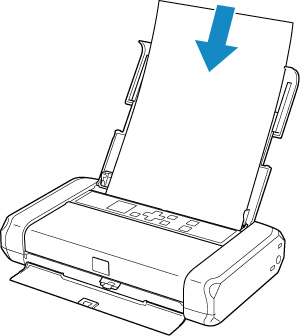
The screen to register the rear tray paper information is displayed.
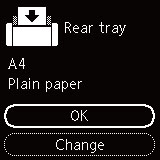
If the page size on the LCD matches the size of the paper loaded in the rear tray, select OK.
If not, select Change to change the setting in accordance with the size of the loaded paper.
 Important
-
For more on the proper combination of paper settings you can specify by the printer driver (Windows) or on the LCD:
When the paper settings for printing are different from the paper information registered to the printer:
Ex:
-
Paper settings for printing: A5
-
Paper information registered to the printer: A4
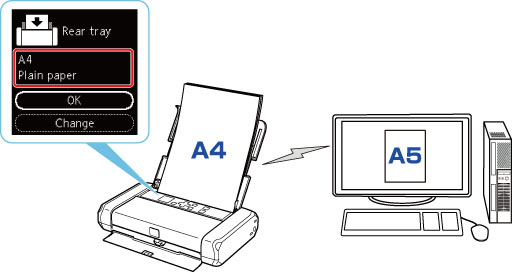
When you start printing, a message will appear.
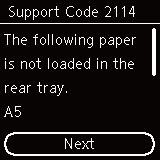
Check the message and select Next. When the screen to select the operation is displayed, select one of the operations below.
 Note
Note
-
Depending on the setting, the choices below may not be displayed.
- Print on set paper
- Select if you want to print on the paper loaded without changing the paper settings.
- For example, when the paper setting for printing is A5 and the paper information registered to the printer is A4, the printer starts printing on the paper loaded in the rear tray without changing the paper size setting for printing.
- Replace paper
- Select if you want to print after replacing the paper of the rear tray.
- For example, when the paper size setting for printing is A5 and the paper information registered to the printer is A4, you load A5 sized paper in the rear tray before you start printing.
-
The paper information registration screen is displayed after replacing the paper. Register the paper information according to the paper that you loaded.
Note-
If you do not know what paper information to register to the printer, press the Back button when the screen to select the operation is displayed.
-
For more on the proper combination of paper settings you can specify by the printer driver (Windows) or on the LCD:
-
- Cancel print
- Cancels printing.
- Select when you change the paper settings specified for printing. Change the paper settings and try printing again.
